Create and manage opportunities
Create an opportunity to evaluate a potential deal with a partner company.
Overview
Plan availability: Essential/Advanced
User role required: Manager/Contributor (see details)
Opportunities include the identification of the partner or asset, its evaluation, and the contracting until the deal signature.
Opportunities can target a specific asset or technology offered by a company (in the case of in-licensing, research collaboration, or asset acquisition projects), or a company (in the case of out-licensing or a company acquisition).
Check the detailed user rights regarding opportunities here.
Access opportunities
There are three ways to access an existing opportunity:
- Click Opportunities on the navigation bar to access the opportunity hub.
- Access the opportunity through an initiative.
- Use the Search bar.
What's inside an opportunity
- You can see if the opportunity is part of a private initiative with the red lock icon next to the opportunity name, and you can click View access to see the list of authorized users.
- You can add a code name next to the opportunity name to refer to it internally without revealing confidential details such as the partner or asset name, for example when you share exports, reports or updates with a wider audience
- You can see and modify the status of the opportunity.
- You can directly access the company profile by clicking its name on the top of the opportunity page.
- You can update the workflow.
- You can browse all information related to the opportunity in the different tabs:
- Overview: status update, related alliance, notes, evaluations, and tasks.
- Details: tags and all fields related to the opportunity management and the asset information.
- Meetings: meeting records associated with the opportunity.
- Contacts: key contacts associated with the opportunity.
- Attachments: all files useful to enrich the opportunity, including emails, publications and hyperlinks to external storage places. For hyperlinks you can choose the related icon in the drop-down list to visualize quickly the type of link: Google Drive, Microsoft Sharepoint, Youtube or default)
- Related information: all related agreements, opportunities, and companies.
- You can access the Database, Activity stream, Tasks and Evaluations, and Comments panels at the top right of the page.
Create opportunities
Notes:
- If the initiative doesn't exist yet, you will first need to create a new initiative.
- Opportunities can be created individually (see instructions below), or imported in bulk.
- More assets can be added to the opportunity once it has been created.
There are three entry points to create an opportunity:
- From the navigation bar
You can create an opportunity wherever you are in the application from the blue Create button at the bottom of the navigation bar. Click Create and select Opportunity in the drop-down list.
- From the opportunity hub
Click the Create button at the top right of the Opportunities page.
- From initiative, company, contact, or campaign pages
Go to the opportunity tab for an initiative, a company, a contact, or a campaign, and click the Create button at the top of the opportunity list.
After clicking one of the three Create buttons mentioned above, a pop-up will appear.
First step:
If several asset types (pharma, technology, organization, and consumer health) are enabled in your space, you will be prompted to select the relevant asset type in the first step. Check the Remember my choice option to skip this step in future sessions if you always work with the same asset type.
If only one asset type is enabled in your space, this step is skipped, and the asset type is automatically selected.
Second step:
Fill out the different fields:
Company: To autofill the opportunity with Cortellis or Pharmaprojects data, see this article.
Asset: If you selected a company from Cortellis or Pharmaprojects databases, the related assets from that database will be available for selection.
Opportunity name: Once the asset is selected, the opportunity is automatically named after it. You can edit this name at any time if you need it to differ from the asset name.
Opportunity type: Select the desired opportunity type (e.g. in-licensing, investment, out-licensing). If only one opportunity type is enabled for the selected asset type, it is automatically selected, and its description is displayed.
Initiative: If you started creating the opportunity from within an initiative, the initiative is pre-selected. If you are creating from the generic creation flow, the default initiative is selected first, then the last initiative you used is remembered for your next creation.
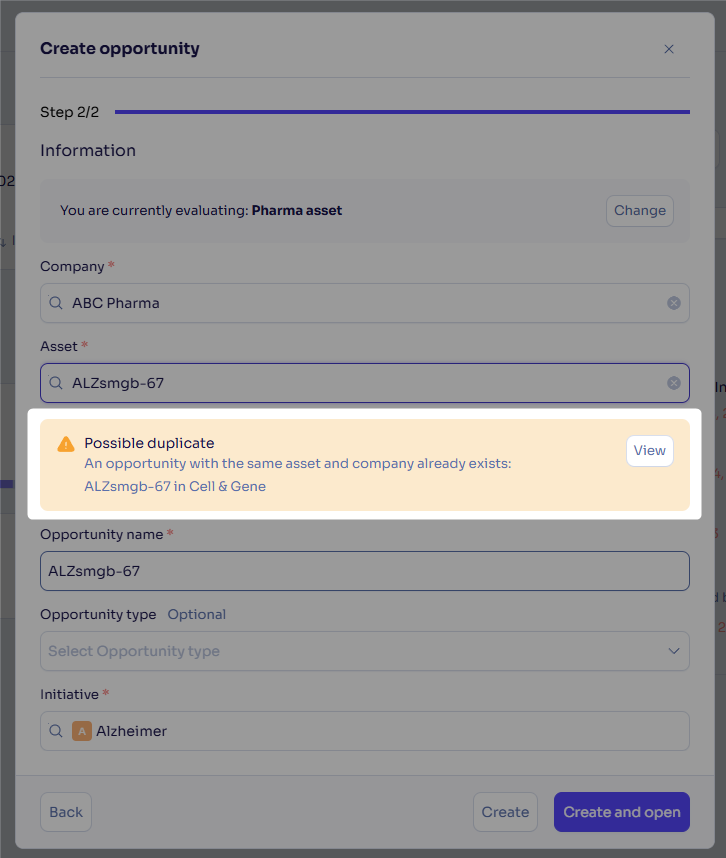
If you enter a company and asset matching an existing opportunity, a duplicate warning message will appear regardless of which initiative you select. Click View to open and review the existing opportunity.
Third step (optional):
If there are required fields tied to the opportunity type selected in the previous step, a third step appears. Fill in the required fields and either click Create or Create and open.
Important notes on opportunity creation
- When creating opportunities from a company, a contact, or a campaign, specific behaviors apply to facilitate the creation process:
- When selecting the initiative, the default initiative is pre-selected by default.
- When selecting the company, if you're creating the opportunity from a company profile, this company is pre-selected by default to be associated with the opportunity.
- In the last step (Summary):
- If you're creating the opportunity from a campaign, the following fields will be displayed: Source = Campaign and Source campaign = [name of the campaign].
- If you're creating the opportunity from a contact profile, the contact name will be displayed.
- If the company or opportunity name matches a record from Cortellis or Inpart Data, the company profile and asset fields will be automatically filled out by Cortellis or Inpart Data to simplify data entry.
- A user with a Contributor role can't select the opportunity type. If a Contributor user creates a new opportunity, a Manager user can update the opportunity type in the overview section. Until then, the opportunity type will be marked as To be defined.
Display opportunities as a Kanban board
Required user role: Manager
The Kanban Board is available only for users that have the full workflow feature. This feature isn't available to users connected to Inpart Classic.
Go to the Opportunities hub page and click the table icon at the top of the list.
If you use several workflow types for your opportunities (e.g., In-licensing, Investments...), you'll have one Kanban board for each one of them. By default, you have at least a To qualify board that covers all the opportunities that are currently in their early stages (Identification or Triage) before being distributed to the relevant workflow type.
Each Kanban board is split into several columns representing the different stages of the workflow, and each opportunity is represented as a card under the right column. These cards display the opportunity name, the company associated, the initiative name, and the status of the opportunity (Active, On-hold, Declined, or Closed).
The cards are ordered first by priority level, with the high-priority opportunities showing at the top of the list, and then secondly by alphabetical order. The order can be reversed if your goal is to view first the opportunities with no priority, so that you can prioritize them.
Click the cards to open the quick view of opportunities in the right-side panel.
Important: Please note that you can't move a card from one column to another. You need to open the opportunity and update the workflow.
Add customized templates to the opportunity summary
Required user role: Manager with Business Admin rights.
Customized opportunity summary templates can help you describe the deal being evaluated with its structure and strategic rationale. The template is to be selected at the initiative level and is the same for all the opportunities contained in this initiative.
First, to add your own customized templates, go to the Administration page, in the Templates tab. In the Opportunity summary templates section, click Create, name the template, select the related asset type, and enter the summary text. The Default Summary template is here to give you an example of a template, but it can't be selected as a summary template in opportunities; you'll have to create your own templates.
Then, you have two options to apply the template to opportunities.
If the initiative is already created, go to the related initiative, click Edit, and select the template. You also have the possibility to select None to leave the opportunity summary empty.
If you're creating a new initiative, see Create and manage initiatives.
Change the opportunity owner
Required user role: Manager with access to the opportunity.
Click the name of the current owner at the top of the opportunity overview. A drop-down list will appear with the list of users you can select. You can only reassign an opportunity to a user with a Manager role (even if the initial owner had a Contributor role).
Change the partner company, opportunity name or code name
Changing the company name can be useful in the following cases:
- A company acquires the current company of the opportunity. You can update the opportunity's company to the new acquiring company.
- Two companies merge to form a new entity, including the current company of the opportunity. You can update the opportunity's company to the new entity.
- A spin-out company is created from the current company of the opportunity. You can update the opportunity's company to this new spin-out company.
Important notes:
- Only one company can be selected.
- You can't leave the company field empty.
- Once the company is changed, the event is recorded in the opportunity's activity stream (Company changes to xxx).
- If the new company was previously selected in the Related information tab of the opportunity, the related company link is removed.
- The profiles suggested in the Database side panel of the opportunity will be replaced by the profiles related to the new company.
Click the more option button at the top of the opportunity page and select Edit.
The following pop-up will open. You can remove and replace the current company with another company from the drop-down list. If the new company hasn't been previously created in Deal, you need to create it from the company hub.
You can also edit the opportunity name (Title) and the code name from there.
Click Update.
Link opportunities, companies, or agreements to an opportunity
Required user role: Manager with access to the opportunity.
In case you're evaluating the same asset, technology, or organization in different opportunities based on geographical areas or clinical indications, for instance, you can link these opportunities and companies together for a more efficient follow-up. If an agreement has been created, it can also be linked to the relevant opportunity.
All the linked elements are listed in the Related information tab. Click Add in the desired section and select an existing element to link it here.
Once you've linked an element in the initial opportunity, this opportunity appears as well in the target opportunity, company, or agreement.
Delete opportunities
Required user role: Manager with access to the opportunity, or Contributor with access to the opportunity and if you created the opportunity and the opportunity is still in the Identification stage, and there are no tasks created by default in the Identification stage.
Important note: When deleting an opportunity, the related asset stays visible on the related company page, and the "1 opportunity" tag marking the asset represents the deleted opportunity.
Click the more options button at the top right of the opportunity overview and select Delete. A pop-up will open asking for your confirmation.
Detailed opportunity user rights
All rights below are conditional on whether the initiative is public or private. If an initiative is private, the rights apply only to the users who have access to the initiative.
If you're a Manager, you can perform the following actions on all opportunities whether you own them or not (and whether you own the related initiative as well).
| Rights | Manager | Contributor |
| View opportunities | ✓ | ✓ |
| View opportunities as a Kanban board | ✓ | X |
| Create opportunities | ✓ | ✓ |
| Create customized summary templates |
✓ if you have a Business Admin role |
No |
| Select summary templates | ✓ | X |
| Own opportunities | ✓ |
X By default, the opportunities created by a Contributor are assigned to the "Default assignee" of the initiative |
| Import opportunities | ✓ | X |
| Rename opportunities | ✓ |
✓ if you created the opportunity and the opportunity is still in the Identification stage |
| Change the opportunity owner | ✓ | X |
| Change the partner company | ✓ | X |
| View and update qualification fields | ✓ |
✓ if you created the opportunity and the opportunity is still in the Identification stage, and except for Tags |
| Link other opportunities or companies | ✓ | X |
| Update all fields of the Overview, Details, Meetings, Contacts, Attachments and Related information tabs | ✓ |
✓ If you created the opportunity and the opportunity is still in the Identification stage |
| Upload, rename, or delete attachments | ✓ |
✓ If you created the opportunity and the opportunity is still in the Identification stage |
| Add or remove contacts | ✓ | ✓ |
| View and add comments | ✓ | ✓ |
| Update or delete comments |
✓ If it's your comment |
✓ If it's your comment |
| View the Database panel | ✓ | X |
| Manage profiles in the Database panel | ✓ | X |
| View the activity stream | ✓ | ✓ |
| Delete opportunities | ✓ |
✓ If you created the opportunity and the opportunity is still in the Identification stage, and there are no tasks created by default in the Identification stage |