Browse Change History logs for all records
Access detailed, immutable history logs directly from the Administration page to review, filter, search, and export all activity on your records, from recent updates to historical changes.
Overview
See what was changed, when it was changed, and who made the change through a simple export.
Plan availability: Essential/Advanced
Required user role: Manager with Business Admin rights.
Export a log
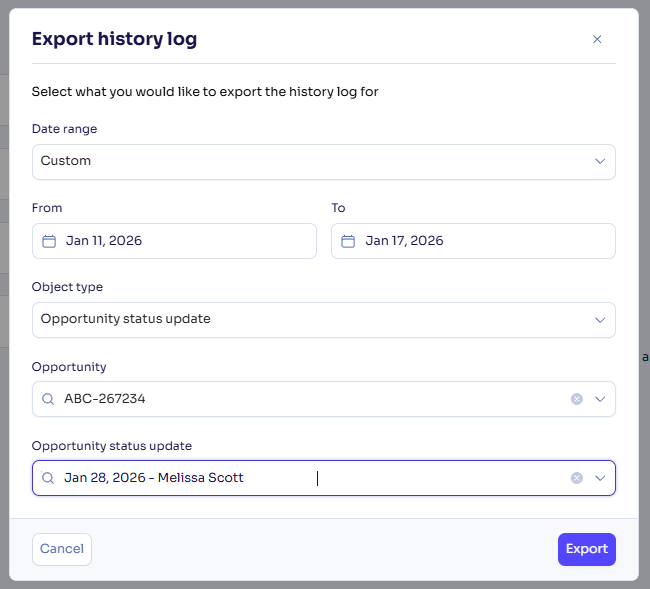
Open the Administration page and click the History log button at the top right of the page. The following pop-up will open.
Select the date range, object type, and related object. Click Export. An Excel file will be downloaded to your device.
Information included in the history logs
History logs are provided using an Excel format.
Here are the information available when downloading the Excel file:
- Object Type: opportunity, company, meeting, agreement, etc.
- Object ID: system default 4-digit ID.
- Version: The version number of the object is incremented after each update impacting the object.
- Type: Type of update.
- Timestamp: When the action happened.
- User: Name of the user who performed the action.
- Field Name: All related fields that were updated at the time of the action.
- Current Value: Current value of the field(s).
- Previous Value: Previous value(s) of the field(s).
Was this article helpful?
0 out of 0 found this helpful