Create and manage assessments - Evaluations, health checks, and due diligences
The assessment hub is where you run any structured feedback process in Deal - evaluations, health checks, and due diligence projects - from a single place.
Overview
Evaluations, health checks, and due diligence projects all use the same assessment hub in Deal: you create questions, invite participants, track responses, and export results. This article covers the shared mechanics and the differences across assessment types.
Plan availability: Advanced
Please contact your CSM at Inpart to enable this feature on your Deal space.
Required user role: Manage/Contributor
Which assessment type should you use
| Assessment type | Attaches to | What makes it different |
| Evaluation | Opportunities, alliances, or agreements | General-purpose assessment (CDA approval, feasibility review, data destruction, etc.). Contributors can now create evaluations, which was not possible in the legacy version. |
| Health check | Alliances only | Built for recurring alliance performance reviews. |
| Due diligence | Opportunities only | Supports splitting the assessment into independent sub-assessments per functional area, each with its own questions, participants, and outcome, instead of a single shared survey. |
Direct integration of due diligence into opportunity pages is coming later this year. For now, access it from the dedicated hub in the navigation bar.
New vs Legacy evaluations
- The new evaluation feature offers more functionality and enables you to manage more evaluation use cases than the evaluation feature historically available in opportunities.
Only legacy evaluations are visible on the Deal homepage for now. New evaluations are coming soon.
- Users with a Contributor role could not create evaluations in the legacy version; they can now do so in the new version.
Access your assessments
- Evaluations
Evaluations related to opportunities:
Open the opportunity for which you want to access the evaluations and click the checkbox to open the Tasks and Evaluations panel.
Then, click the New! Evaluations tab to see the evaluations created with the new version of evaluations.
Evaluations related to agreements and alliances:
Open the agreement or alliance for which you want to access the evaluations and click the checkbox to open the Evaluations panel.
Each evaluation linked to the record appears as a card showing:
- Title and Description (truncated to one line)
- Status
- Response rate — the number of participants who have responded out of the total number of participants
- Due date — shown for ongoing evaluations only; displayed in red if overdue
- Completion date — shown for completed evaluations only
Click any evaluation card to open the full evaluation in the evaluation hub in a new tab.
To create a new evaluation, click Create. A new evaluation of type Evaluation is created in the evaluation hub, with the current agreement or alliance set as the related project.
- Health checks
Open an alliance; the ongoing health check is directly visible in the Overview tab. Click the health check title to open it in a new tab.
- Due diligences
Due diligences are all available from the due diligence hub. Open the navigation bar and click Due Diligence.
Note: Direct integration into Deal's opportunity pages will come later this year.
What's inside assessments
- The status: Draft, Ongoing, or Closed.
- A link to the related opportunity, agreement, or alliance.
- The assessment owner.
- A Details section with the start date, due date, and description.
- A Shared files and emails section for uploaded documents.
- A Settings section for your assessment preferences for evaluations and health checks.
Assessment statuses
There are three statuses: Draft, Ongoing, and Closed. Once an assessment leaves Draft, it cannot be returned to Draft, and a closed assessment cannot be reopened.
- Draft
Set up your questions, configure the assessment's parameters, and upload documents to give participants context before publishing.
- Ongoing
The assessment is open for participants to respond. You can view submitted answers as they come in, monitor how many people have responded, and send reminders to those who haven't.
For health check specifically, the responses are displayed as a spider chart.
You can monitor the number of people who have already submitted their answers with the counter at the top of the page and send a reminder to those who haven't.
Click the Add participants button to see the details of who participated. If the survey is anonymous, you won't see the participation status.
- Closed
Closing happens automatically once all participants have responded, if that setting was enabled, or you can close it manually. Once closed, participants can no longer edit or submit answers. You can still view the number of responses and export the results.
Create assessments
Required user role:
Evaluations for opportunities: Manager or Contributor
All other assessment types: Manager
You can create an assessment either from the navigation bar or from each assessment hub. Click the Create button, and a pop-up will open.
For evaluations, you need to select the related record type: opportunity, agreement, or alliance. For health checks and due diligence, you can only link an alliance or an opportunity.
Enter the name of the opportunity, alliance, or agreement (depending on the assessment type), select it in the list, and click Confirm.
You will land on the new assessment page. Enter the name, due date, and description.
Set up questions
You can use a template, reuse questions from a previous assessment, or start from scratch.
Use a template
Click the more options menu at the top-right of the page and select Create from template. To see how to create and manage question templates, see Manage question templates for evaluations, health checks, and due diligence.
Reuse questions from another assessment
To reuse questions, click Copy from previous assessment, select an existing assessment, and click Confirm. You can then edit, reorder, duplicate, or delete the imported questions.
Add questions from scratch
You can divide the questions into sections for any type of assessment. Click Add section, and start adding questions under each section. Questions cannot be moved under sections if they've been previously created, so make sure to add the sections first.
For due diligence projects, you can choose between two structures depending on the complexity of your project: add questions directly to a single shared survey, or divide the assessment into multiple independent sub-assessments, one per functional area, each with its own questions, participants, and outcome.
Once you've created the sections or sub-assessments, click Add question, then enter a title and choose an answer type:
- Scale: define the range and labels for the lowest and highest score, with optional participant comments.
- Choice: enter possible answers and choose single or multiple choice, with optional participant comments.
- Text: no setup needed, a free text field appears once published.
Once a question's format is set, you can make it required, duplicate it, or delete it. Changing a question's answer type resets any answers already configured for it.
Choose the assessment settings
The following assessment settings are available for evaluations and health checks only.
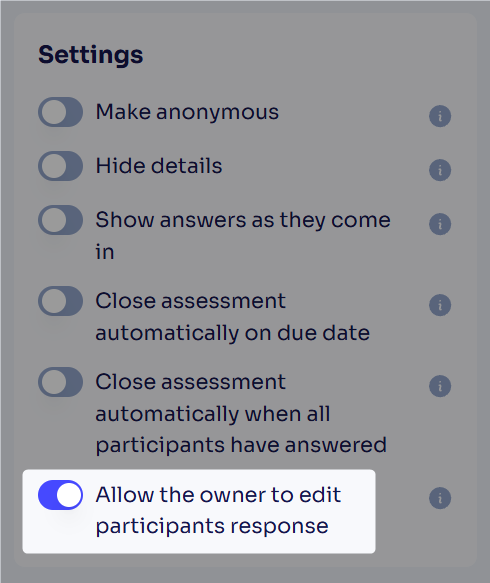
- Make anonymous: hides participant names next to their scores.
- Hide details: controls whether participants can see the due date and description.
- Show answers as they come in: makes answers visible to all Manager users while the assessment is ongoing.
- Close assessment automatically on due date: closes the assessment once the due date has been reached.
- Close assessment automatically when all participants have answered: closes the assessment once every participant has responded.
Upload documents
Click Upload document to give participants context, either by dragging and dropping files or uploading from your device.
Invite participants
On the assessment page, click Add participants.
You have two ways to invite people:
Only people invited
For existing Deal users or registered contacts. Enter their names, select them from the list, and click Confirm.
The selected people will receive an email notification. They will need to click Go to assessment in the email. Then, they will either have to enter their credentials on the login page, or they will automatically be logged into the platform if they're already connected, and they will land on the assessment page.
Anyone with the link
For external people from partner companies who aren't Deal users. Enter the relevant domain names, then copy and share the link.
We recommend not changing the invitation type to Only people invited after sharing the link, as those who initially received the link won't be able to open it anymore.
- People who have access to the link will have to click it, and they will land on a page inviting them to sign up for free for the evaluation hub. They will have to enter their email address, check the Inpart privacy policy box, and click Continue.
- They will then receive an email. They will have to click Access the assessment.
- After that, they will be directed to the login page of the Deal evaluation hub. They will have to enter their first name, last name, select their company, and click Continue to register on the platform. They will then finally land on the evaluation page.
Important: External people who register on the platform to participate in an evaluation are automatically created as external contacts in Deal.
For Deal users who are invited to participate in several evaluations, they can follow up with their submissions in the evaluation hub by selecting the Participate label. They can see their participation status for each evaluation and the due dates.
Send reminders
Open the assessment, click the more options button, and select Send reminder.
A pop-up will open. Select the participants you want to notify in the drop-down list and click Send.
To see how many reminders were already sent and when, click View reminder history.
Edit participants' responses
The assessment owner(s) can edit a participant's submitted response directly from the assessment page and resubmit it on their behalf, with an email notification sent to them once updated.
As a prerequisite, you need to activate the Allow the owner to edit participants response toggle during assessment creation.
A pop-up will open; select the participant whose responses you want to edit.
You will land on the questionnaire where you can edit the responses. Once done, click the Submit button. The participant will receive a notification informing them that their responses were edited by the assessment owner.
Import participants' responses
Required user role: Assessment owner.
You can import participants' responses using an Excel template, useful for responses collected outside the platform.
Important:
Existing responses aren't overwritten by the import.
Participants are notified when their answers are imported.
Imported responses are treated as submitted responses in Deal.
The assessment owner receives appropriate email notifications for successful, skipped, or invalid imports.
If an assessment contains mandatory document questions, the participants are notified that they need to upload the required document themselves.
The import response feature is disabled when the Make Anonymous setting is enabled.
Open an assessment, click the more option menu, and select Import answers.
A pop-up will open. Download the Excel template and fill in the participants' answers. Then, upload it again to the pop-up and click Import.
Restrict access to assessments
Required user role: Manager with access to the related record, and/or the assessment owner.
On the assessment page, click Manage access, then Restrict access, to limit who can view it. Users must already have access to the related opportunity, agreement, or alliance.
To grant access to a private assessment to more users, search them and add them from the Manage access pop-up.
Edit, duplicate, or delete assessments
Edit assessments
You can only edit an assessment while it's ongoing. Participants are notified by email every time it's modified.
Open the assessment, click the more options button, and select Edit Assessment to update the due date, description, questions, or shared files.
Duplicate assessments
Open the assessment, click the more options button, and select Duplicate. The copy keeps all questions, settings, and participants, and its title ends in (Copy).
Delete assessments
Required user role: Manager.
Important: Ongoing assessments cannot be deleted.
Open the assessment you want to delete, click the more option button, and select Delete.
A confirmation pop-up will appear. Click Delete.
Filter assessments
In the assessment hubs, use the search bar to search by title, or click Filter in the relevant hub to open the filtering panel. Select your filter values, click Apply filters, or click Clear all to reset.
Export and manage assessment reports
Export a list of assessments
From one of the hubs, click Export.
Select No template, all columns for a simple Excel export of the hub list. For a more advanced reporting export, you can select the Default Evaluation Standard Export, which provides a list of assessments, all the answers and some statistics about the answers, or one of the custom Excel reports added specifically for your company (the full list of reports is available in the Additional Excel templates section).
Export a single assessment report
Open an assessment with Ongoing or Closed status and click Export.
For an advanced reporting export, you can select the Default reports, or one of the custom reports added specifically for your company (the full list of reports is available in the Additional templates sections).
Create and manage assessment report templates
Please contact your Customer Success Manager at Inpart to create and manage your custom report templates.
Request audit logs
You can request access to detailed, immutable audit logs to review, filter, search, and export all activity on your records, from recent updates to historical changes.
Please contact your Customer Success Manager at Inpart to request the audit logs.
Submit responses and comment
Submit responses
Invited participants can track their submissions across assessments from the Participate label in the relevant hub, including participation status and due dates.
You can answer the health check's questions offline. On the health check page, click Offline Mode.
The following pop-up will open. Click Download next to the Excel file. The file will automatically be downloaded to your device. Once you've filled out the file, reupload it in the same pop-up under the Upload section, and click Import.
Upload your answers as many times as you want before submitting. Each upload in offline mode replaces your previous answers (a dialog confirms this). Once submitted, you can still edit answers inline, but offline mode is no longer available.
Comment
Comments and user mentions can be used to interact within a health check project. Click the discussion icon at the top right of the page to open the comment panel.
Notifications
Users are never notified for actions they perform themselves, even if they'd normally fall within the recipient group.
Assessment lifecycle
- When the assessment status changes - Recipient: assessment owners
- When the assessment due date is updated - Recipient: assessment owners
- When the assessment due date is reached and participants still have pending responses - Recipient: assessment owners and participants with pending responses
- When the assessment is auto-closed because all participants have responded - Recipient: assessment owners
- When the assessment is auto-closed because the due date was reached - Recipient: assessment owner
- When the assessment is reopened - Recipient: assessment owners and all assigned participants
- When a new owner is added to the assessment - Recipient: newly assigned owner
Participants
- When a participant is invited (Draft state, sent on publish) or added (Ongoing survey) - Recipient: added participant
- When an external participant tries to access an assessment/survey via a shared link - Recipient: external participant
- When a manager manually sends a reminder - Recipient: participants who haven't submitted yet
- When a participant submits their assessment response - Recipient: participant
Comments/mentions
- When a user is @mentioned in a comment - Recipient: mentioned user
- When a new comment is added at assessment level - Recipient: assessment owners
Due Diligence specific
- When a participant is assigned to a survey - Recipient: assigned participant
- When a participant is added directly to a due diligence survey - Recipient: added participant
- When a manager sends a reminder from the root assessment level - Recipient: participants with pending surveys
- When a manager sends a reminder from a specific survey level - Recipient: participants of that survey
- When a participant completes a survey - Recipient: participant
- When a new comment is added to a survey - Recipient: assessment owners and survey participants (assessment-level comments notify owners only)
Content changes
- When a manager edits assessment/survey questions - Recipient: participants who already accessed the assessment/survey
- When new files or emails are shared to an assessment - Recipient: participants who already accessed the survey
Detailed user rights
| Right | Manager | Contributor |
|---|---|---|
| View and access all assessments | Yes | Only if invited as a participant (Ongoing and Closed) |
| Create assessments | Yes, only for records you have access to | Evaluations only |
| Be the owner | Yes | No |
| Edit | Yes | No |
| Submit answers | If invited as a participant | If invited as a participant |
| Duplicate | Yes | No |
| Filter | Yes | Yes |
| Export | Yes | No |
| Restrict access | Yes, if Manager with record access and/or owner | No |
| Delete | Yes, only Draft and Closed | No |